Guide to Convert Excel Contacts
Step 1
Start menu » All Programs » Excel to Outlook Converter. Click Browse & to add file.

Step 2
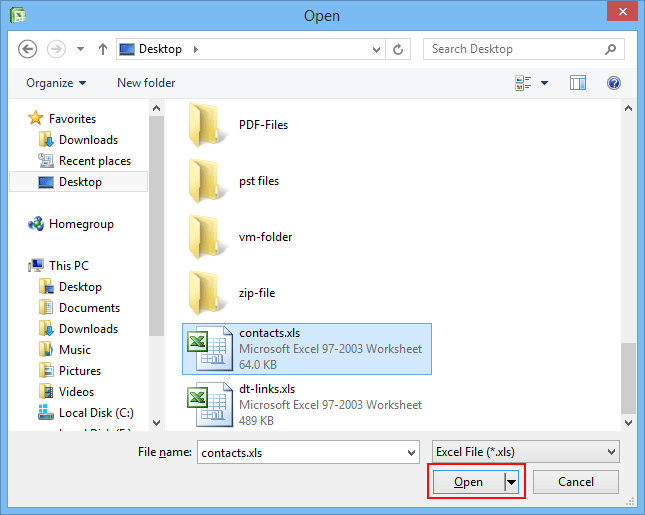
Use drop-down menu for file selection, make your choice & select the required file & Click Open
Step 3
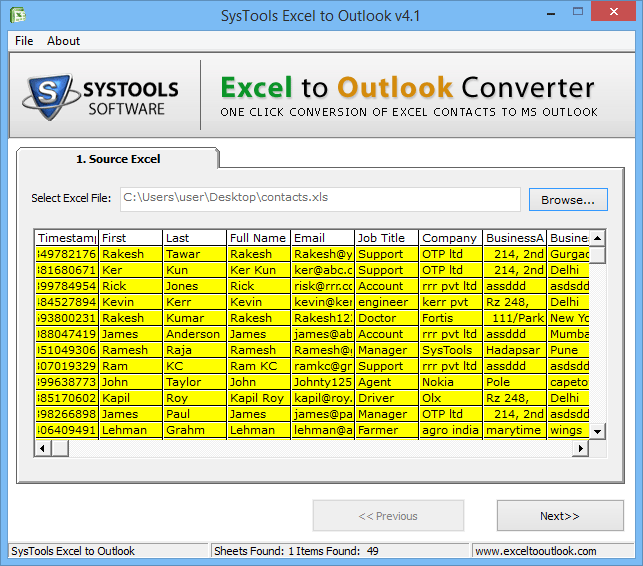
Preview file content on your screen, Click Next
Step 4
Once you click next, this screen will display.
Step 5
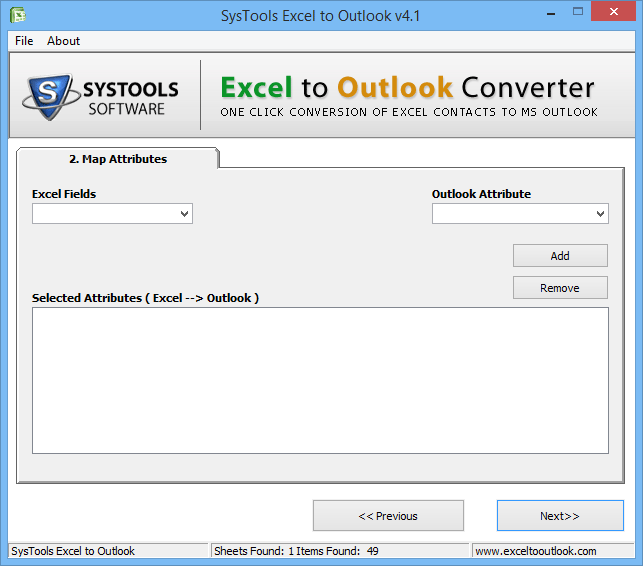
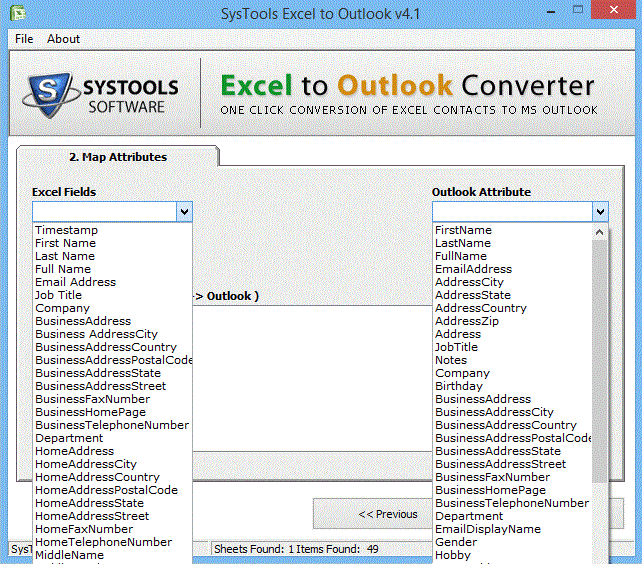
Use Map attribute feature to match the fields within the Software.
Step 6
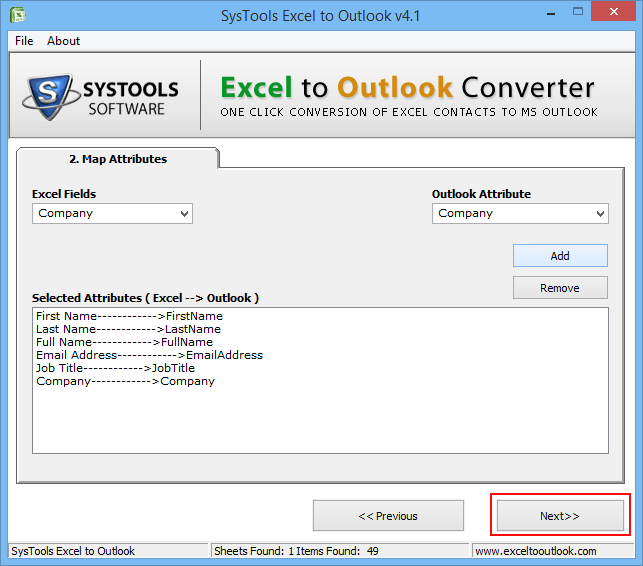
Click add after matching attributes. List of matched attributes will be displayed, you can add more or remove any matched attribute & Click Next
Step 7
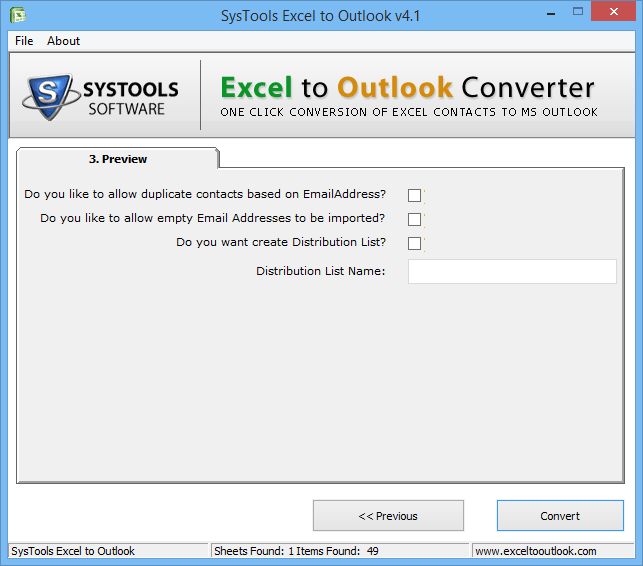
Now check the options you want software to handle during conversion process. Checking the options will allow software to import duplicate contacts; contacts with empty email address and to create and name the distribution list.
Step 8
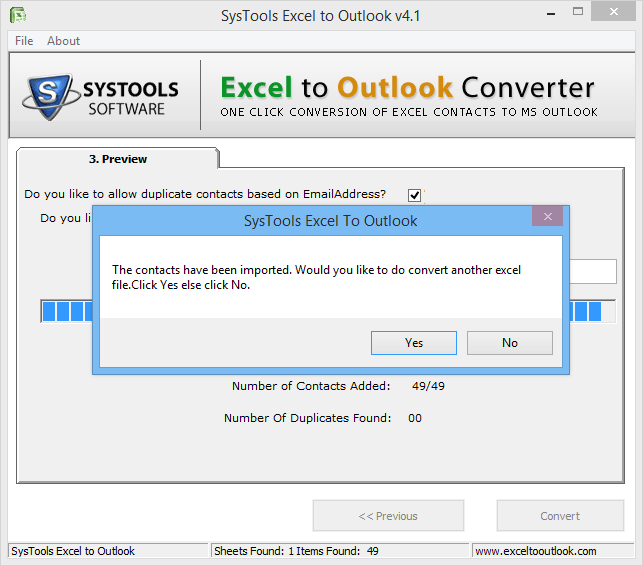
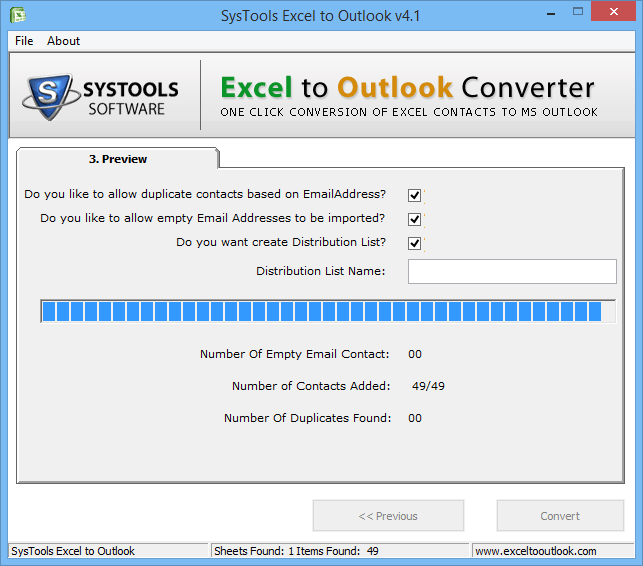
Contacts are added to Outlook contact list.
Step 9
Conversion process is completed, you can find your contacts in Outlook Application.
Click No to Exit & Yes to convert another file.